Assemblies & Bills of Materials
An assembly is a stock item that is built from other stock items. The list of required components - and how much of each - is its bill of materials (BoM). Defining assemblies lets Kitted calculate how many units you can make with current stock, roll up component costs, and automatically deduct the right components when a production order is completed.
Terminology note: Depending on your business profile, the app may call these Recipes (food/drink) or Assemblies (manufacturing/craft). The underlying behaviour is identical.
Creating an Assembly
Before you can create an assembly, the finished good must already exist as a stock item. If it doesn’t, add it in Stock Items first.
- Go to Assemblies and click + New assembly
- Select the stock item that this assembly produces
- Add optional notes (e.g. process notes, quality checks)
- Click Create
Each stock item can only have one assembly definition. Once created, the item is marked as an assembly and you can start adding components.
Building the Bill of Materials
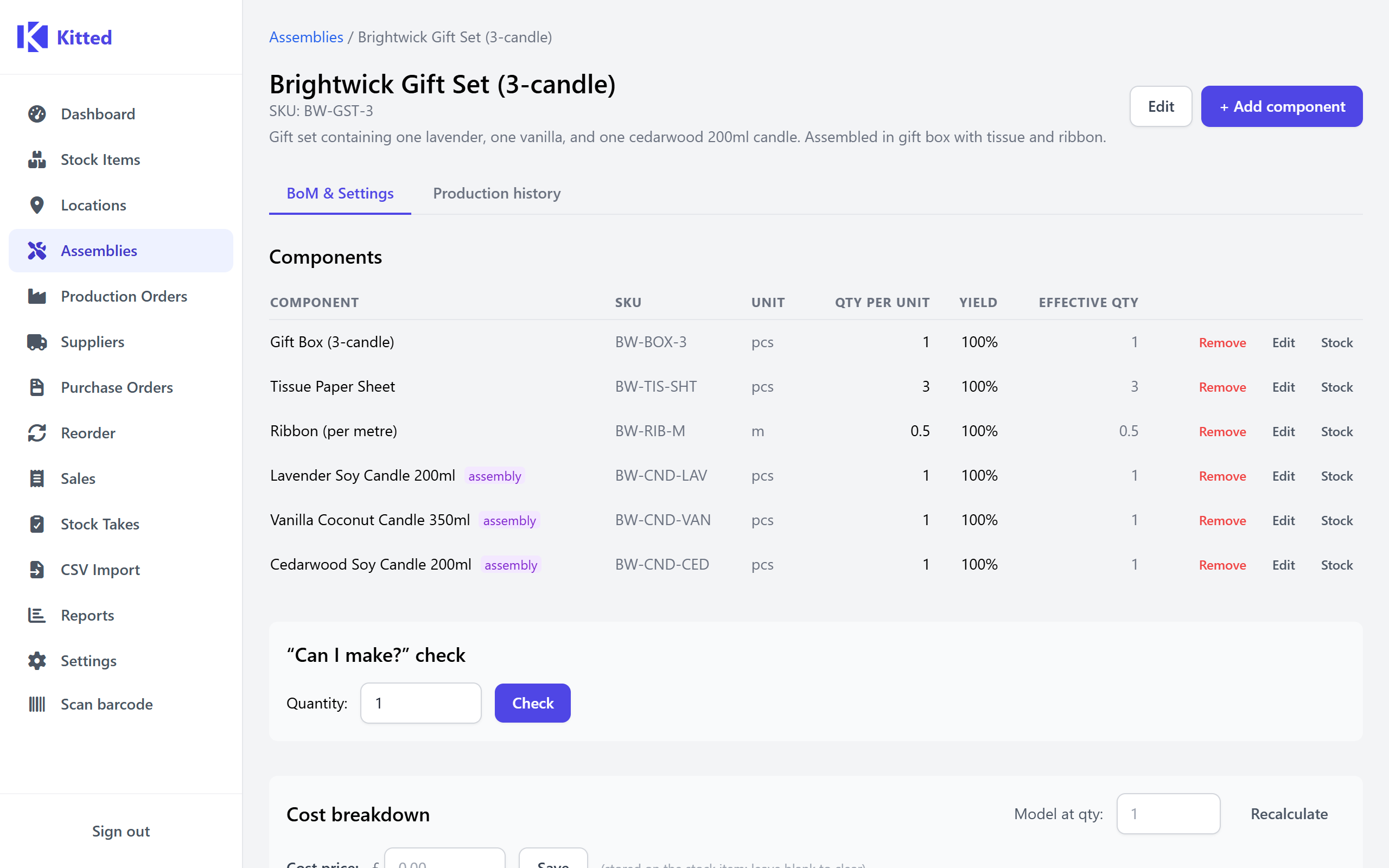
Open an assembly to get to its detail page. Click + Add component to add a line to the BoM.
BoM line fields
| Field | Description |
|---|---|
| Component | The stock item consumed in production |
| Quantity | How much of the component is needed per unit of the finished good |
| Yield factor | What fraction of the input actually ends up in the output (see below) |
Yield factor
The yield factor accounts for waste, evaporation, or expected loss during production. It is a number between 0.01 and 1.0.
- A yield factor of 1.0 means 100% of the component ends up in the finished good - no waste.
- A yield factor of 0.8 means only 80% is used; the other 20% is lost. Kitted will automatically require 25% more of that component to hit the target output (quantity ÷ yield factor).
For most discrete manufacturing, leave yield factor at 1. For food/drink, coating processes, or anything with significant waste or evaporation, set it appropriately.
Sub-assemblies
A component can itself be an assembly (a sub-assembly). Kitted handles this automatically - when calculating requirements it recursively expands the full tree down to raw materials. You can see the fully expanded flat BoM (leaf components only, with quantities per finished unit) on the Expanded BoM tab of the assembly detail page.
Circular references (A contains B contains A) are prevented and will be rejected when adding a component.
Estimated Build Time
You can set an estimated time (in hours and minutes) on each assembly. On the assembly detail page, click Set estimated time.
When an assembly contains sub-assemblies, the Time roll-up on the detail page shows the total estimated time across the whole tree for a given quantity - useful for scheduling and quoting.
Can I Make This?
The Can make panel on the assembly detail page lets you check whether you have enough stock to produce a given number of units right now.
Enter a quantity and click Check. Kitted compares the required component quantities (accounting for yield factors and recursively expanded sub-assemblies) against current stock levels and tells you:
- How many units you can make with what you have
- Which components are short, and by how much
This is a read-only check - it doesn’t reserve or deduct any stock.
Cost Roll-up
The Cost roll-up panel calculates the total component cost per unit of the finished good, based on the cost prices set on each component stock item.
It uses the fully expanded BoM (including sub-assemblies and yield factors), so the result is the true material cost. Click Write to stock item to save the calculated cost back to the finished good’s cost price field.
Using Assemblies in Production Orders
Once an assembly has a BoM, you can create production orders against it. When a production order is completed:
- The finished good is added to stock
- Every BoM component is deducted from stock (using the expanded, yield-adjusted quantities)
See Production Orders for the full workflow.
Production History
The Production history tab on the assembly detail page shows all production orders that have been completed for this assembly, including the quantities produced and the component snapshot that was used at the time.
Where-Used
The Where-used panel on a stock item’s detail page shows every assembly or recipe that includes that item as a component.
This is useful when:
- You need to understand the impact of a component being out of stock across all the things you make
- You want to check all affected assemblies before changing a component’s spec or cost price
- You are discontinuing an ingredient and need to know which recipes reference it
The where-used list shows each assembly name, the quantity of this component used per unit of the finished good, and a direct link to the assembly detail page.
Attachments
You can attach documents and files to any assembly - process notes, quality specs, certifications, and so on. The Attachments card is shown on the assembly detail page.
You can also add tags to each attachment to categorise documents (for example spec-sheet, cert, sop).
See Attachments for full details on uploading, tagging, downloading, and deleting files.