Suppliers
The Suppliers module lets you maintain a directory of your suppliers and link them to the stock items they provide. Linking a supplier to a stock item unlocks price tracking, price break tiers, and feeds the Reorder Workbench with suggested re-order quantities.
Adding a Supplier
Open Suppliers from the sidebar and click New supplier.
| Field | Notes |
|---|---|
| Name | Required. Displayed throughout the app and in purchase orders. |
| Contact name | Optional. The individual you deal with at the supplier. |
Optional. Displayed as a clickable mailto: link on the detail page. | |
| Phone | Optional. |
| Website | Optional. Displayed as a clickable link on the detail page. |
| Lead time (days) | Optional. Used by the Reorder Workbench to show how long stock will take to arrive. |
| Notes | Optional free-text notes. |
Editing and Archiving
Click Edit next to any supplier in the list to update their details. All fields can be changed at any time.
Click Archive to soft-delete a supplier. Archived suppliers are hidden from the list by default; toggle Show archived to see them. Archiving does not remove any historical data or break existing purchase order records.
Supplier Detail Page
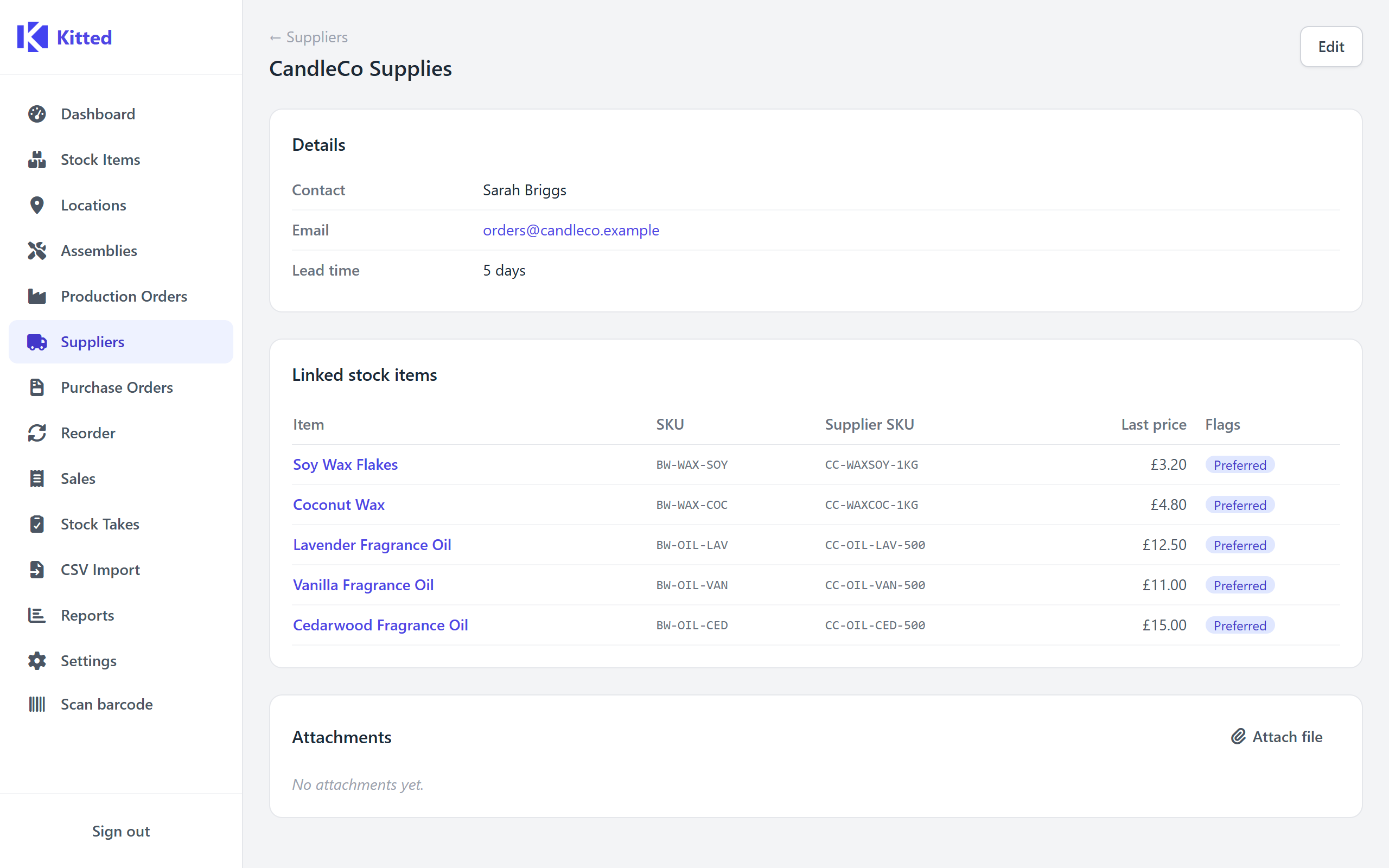
Click a supplier’s name to open their detail page, which shows:
- All contact details, lead time, and notes.
- A Linked stock items table listing every stock item associated with this supplier (see below).
- An Attachments card for uploading documents such as catalogues, contracts, or price lists.
Linking Suppliers to Stock Items
Suppliers are linked to individual stock items from the Stock Items module (on each item’s detail page, under the Suppliers tab). Each link stores:
| Field | Notes |
|---|---|
| Supplier | Which supplier provides this item. |
| Supplier SKU | The supplier’s own part number or code for the item. |
| Last price | Most recent unit price paid. Updated automatically when a purchase order line is received, and can also be set manually. |
| Preferred | Mark one supplier as preferred. The preferred supplier is highlighted in the Reorder Workbench and used as the default for new purchase order lines. |
Only one supplier per stock item can be marked as preferred at a time - setting a new preferred link automatically clears the flag on all other links for that item.
Price History
Every time a lastPrice is updated - whether manually or via a purchase order receipt - a price history entry is recorded. View the price history for a stock item-supplier link from the stock item’s detail page (Suppliers tab → Price history). Each entry shows the unit price, the source (manual or po_receipt), and the date recorded.
Price Breaks
If a supplier offers volume discounts, you can record price break tiers for a stock item-supplier link. Each price break has:
| Field | Notes |
|---|---|
| Min quantity | The minimum order quantity for this price to apply. |
| Unit price | The price per unit at or above this quantity. |
Add as many tiers as needed (e.g. 1+ units at £10.00, 50+ units at £8.50, 100+ units at £7.00). Price breaks are visible in the Reorder Workbench and on purchase order lines to help choose the most cost-effective order quantity.
Supplier List
The suppliers list shows all active suppliers sorted alphabetically. Use Show archived to include archived suppliers. Click any row to open the detail page.
Purchase Orders
Purchase orders track goods you are ordering from a supplier. They can be created in two ways:
- From the Reorder Workbench - select the items you want to restock and click Create Purchase Orders. Kitted groups the selected lines by supplier and creates one Draft PO per supplier automatically.
- Manually - open Purchase Orders from the sidebar and click New purchase order. Select a supplier, then add line items.
PO Fields
| Field | Notes |
|---|---|
| Supplier | Which supplier the order is placed with. |
| Reference | Your PO number or the supplier’s order reference. Optional but useful for matching against invoices. |
| Expected date | When you expect the goods to arrive. Optional. |
| VAT rate | Optional percentage. If set, a VAT amount is calculated and shown on the printed PO. |
| Notes | Free-text notes for the order. |
Line items each have a stock item, a quantity ordered, and an optional unit price (pre-filled from the last recorded price for that supplier link).
PO Statuses
| Status | Meaning |
|---|---|
| Draft | Being prepared. Lines and header fields can be edited. |
| Sent | Order has been placed with the supplier. No further edits. |
| Partial | At least one line has been partially received. |
| Complete | All lines have been fully received. |
| Cancelled | Order was cancelled before completion. |
Click Mark as sent once you have placed the order with the supplier. This locks the PO against further editing and moves it out of Draft so it shows as outstanding in the Reorder Workbench.
Click Print to open a formatted, print-ready version of the PO - useful for emailing to a supplier or keeping on file.
You can upload documents (invoices, packing notes, delivery confirmations) directly to a PO using the Attachments card on the detail page.
Receiving Stock
When goods arrive, open the relevant PO and click Receive goods. A form lists every line that still has outstanding quantity.
| Field | Notes |
|---|---|
| Quantity received | How many units arrived for this line. Defaults to the full outstanding quantity. |
| Location | Which location to book the goods into. |
| Unit price | Defaults to the price on the PO line. Override if the actual invoice differs. |
Add optional notes for the receipt, then click Confirm receipt.
On saving, Kitted:
- Adds stock to the chosen location for each received line and records a purchase receipt movement in Stock Movements.
- Updates the last price on the supplier link record to the received unit price.
- Sets the PO status to Partial (if some lines are still outstanding) or Complete (if all lines are fully received).
Partial receipts are fully supported - receive what has arrived and return to the PO to receive the remainder when the rest of the delivery turns up.