Reorder Workbench
The Reorder Workbench is a one-stop view of every stock item currently below its minimum stock level. It helps you decide what to order, in what quantity, and from which supplier - then raises purchase orders for you automatically.
What Appears Here
The workbench shows all non-archived stock items where the total quantity across all locations is below the item’s minimum stock level. Items set to zero minimum are excluded unless their stock is actually negative.
The list is split into sections:
| Section | Description |
|---|---|
| Workbench table | Purchasable items with at least one linked supplier and no open PO already covering the shortfall. Ready to act on. |
| No supplier configured | Items below minimum with no linked supplier - cannot be ordered here until a supplier is added on the item’s detail page. |
| Already on order | Items whose shortfall is fully covered by outstanding (Sent or Partial) purchase order lines. No action needed. |
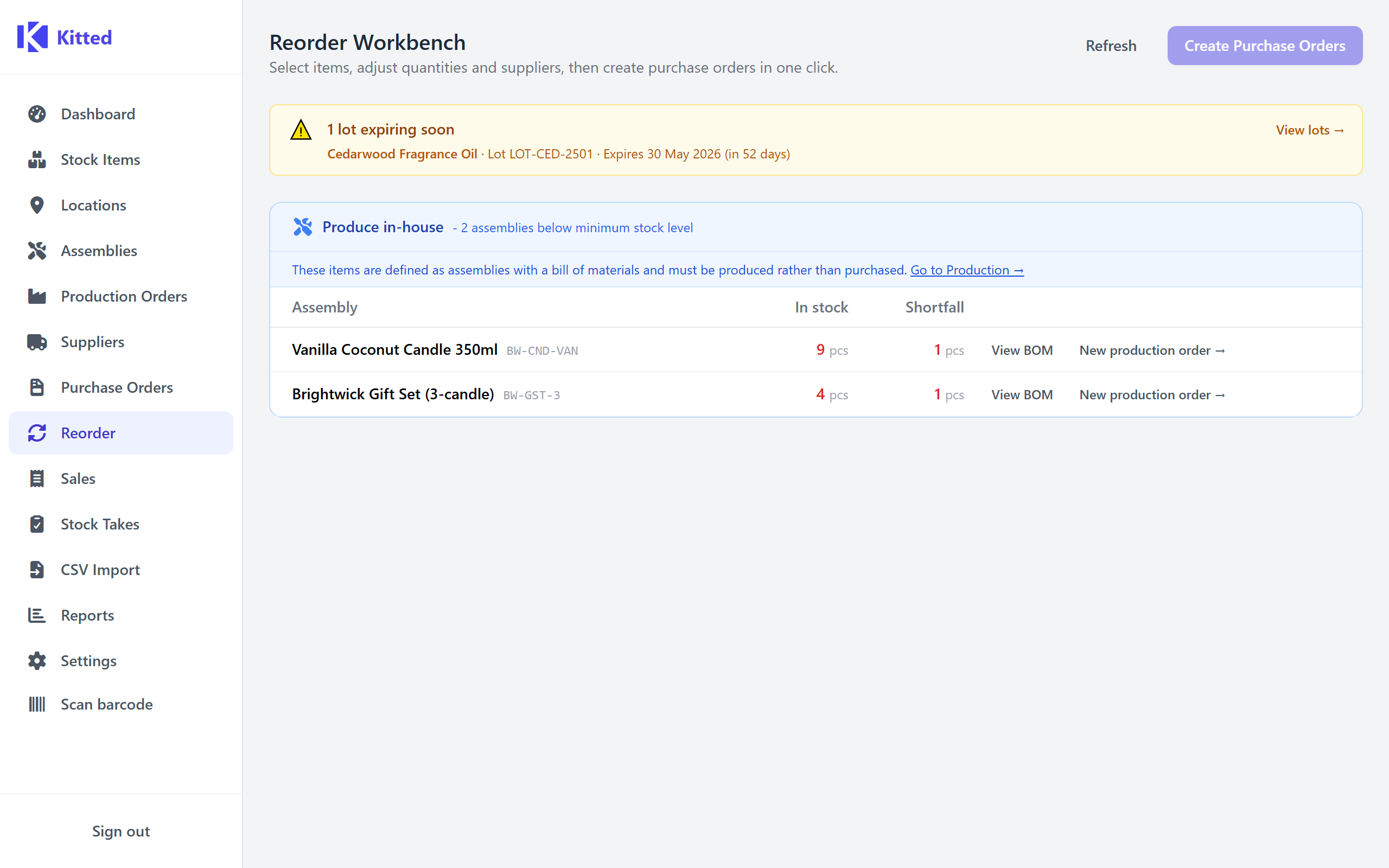
| Assemblies | Assembly-type items that are low. These cannot be ordered - produce them via Production Orders instead. |
Click Refresh at any time to reload the data without leaving the page.
Workbench Columns
| Column | Description |
|---|---|
| Item | Name and SKU of the stock item. |
| In stock | Current total quantity across all locations. Shown in red when below minimum. |
| Shortfall | min_stock_level − total_quantity. How much needs to be ordered to reach the minimum. |
| On order | Quantity already on outstanding (Sent/Partial) purchase order lines. Reduces the net shortfall. |
| Qty to order | Editable field, pre-filled with the net shortfall (shortfall − on_order, minimum 0). Adjust freely before creating orders. |
| Supplier | Dropdown of suppliers linked to this item. The preferred supplier (★) is selected by default. All other active suppliers are available in a second group. |
| Unit price | Last recorded price for the selected supplier link, shown read-only for reference. |
| Lead time | The selected supplier’s configured lead time in days, if set. |
Selecting Items
Use the checkboxes on the left to include or exclude rows from the order batch. The header checkbox selects or deselects all actionable rows at once; a dash (indeterminate state) means a partial selection.
Rows default to selected when a linked supplier is available and the net shortfall is greater than zero. Rows default to deselected when the shortfall is already covered by open purchase orders.
Deselected rows are dimmed but remain visible so you can opt them back in.
Creating Purchase Orders
Once you have reviewed quantities and assigned a supplier to each selected row, click Create Purchase Orders. The button label shows how many orders will be created (one per unique supplier).
Kitted groups the selected lines by supplier and creates one Draft purchase order per supplier. If a lastPrice is on record for the supplier link, it is pre-filled as the unit price on the PO line.
After the orders are created, you are taken directly to the Purchase Orders list to review, edit, and send them.
Only rows with a supplier selected and a quantity greater than zero are included. Selected rows missing either are silently skipped.
Tips
- Set minimum stock levels on your stock items to control which items appear here. Items with no minimum (or minimum 0) will only appear if their stock goes negative.
- Link a preferred supplier to each item so the dropdown is pre-populated automatically.
- Add price breaks to supplier links so you can see whether ordering a larger quantity unlocks a better unit price before committing.