Lot / Batch Tracking
Lot tracking lets you record and trace individual batches of a stock item through your supply chain - from goods receipt, through production, to sale. It is designed for businesses where traceability matters: food producers tracking ingredient batches, manufacturers tracing components to finished goods, or any business that needs to answer “where did this stock come from, and where did it go?”
Lot tracking is opt-in per item. Items that don’t need it are unaffected.
Enabling Lot Tracking on an Item
Open a stock item’s detail page and click Edit. Tick Enable lot tracking to turn on lot-level tracking for that item. You can optionally set an Expiry alert (days) threshold - any lot whose expiry date falls within that many days will appear in the expiry alerts panel on the Reorder Workbench and dashboard.
Once enabled, every goods receipt, sale, stock adjustment, and transfer against that item will prompt for a lot number.
Lot tracking cannot be disabled once any lots exist for an item.
Lots and Lot Numbers
A lot (also called a batch) is a named group of stock received or produced in a single event. Every lot has:
| Field | Notes |
|---|---|
| Lot number | Your identifier for this batch - a supplier’s batch code, an internal reference, or any string that uniquely identifies it. |
| Expiry date | Optional. The date this lot expires. Used for FIFO consumption ordering and expiry alerts. |
Lot quantities are tracked per lot and per location - the same lot number can exist at more than one location if it has been split (e.g. via a transfer).
Receiving Goods to a Lot
When you receive goods against a Purchase Order line for a lot-tracked item, the receive modal shows a Lot number field and an optional Expiry date field for that line.
- Lot number - required for lot-tracked items. Enter the supplier’s batch code or your own reference.
- Expiry date - optional. Enter in
YYYY-MM-DDformat (a date picker is provided).
On receipt, Kitted creates the lot record (or adds to an existing lot with the same number on that item) and records the received quantity against it at the receiving location.
Viewing Lot Levels
From the stock item detail page
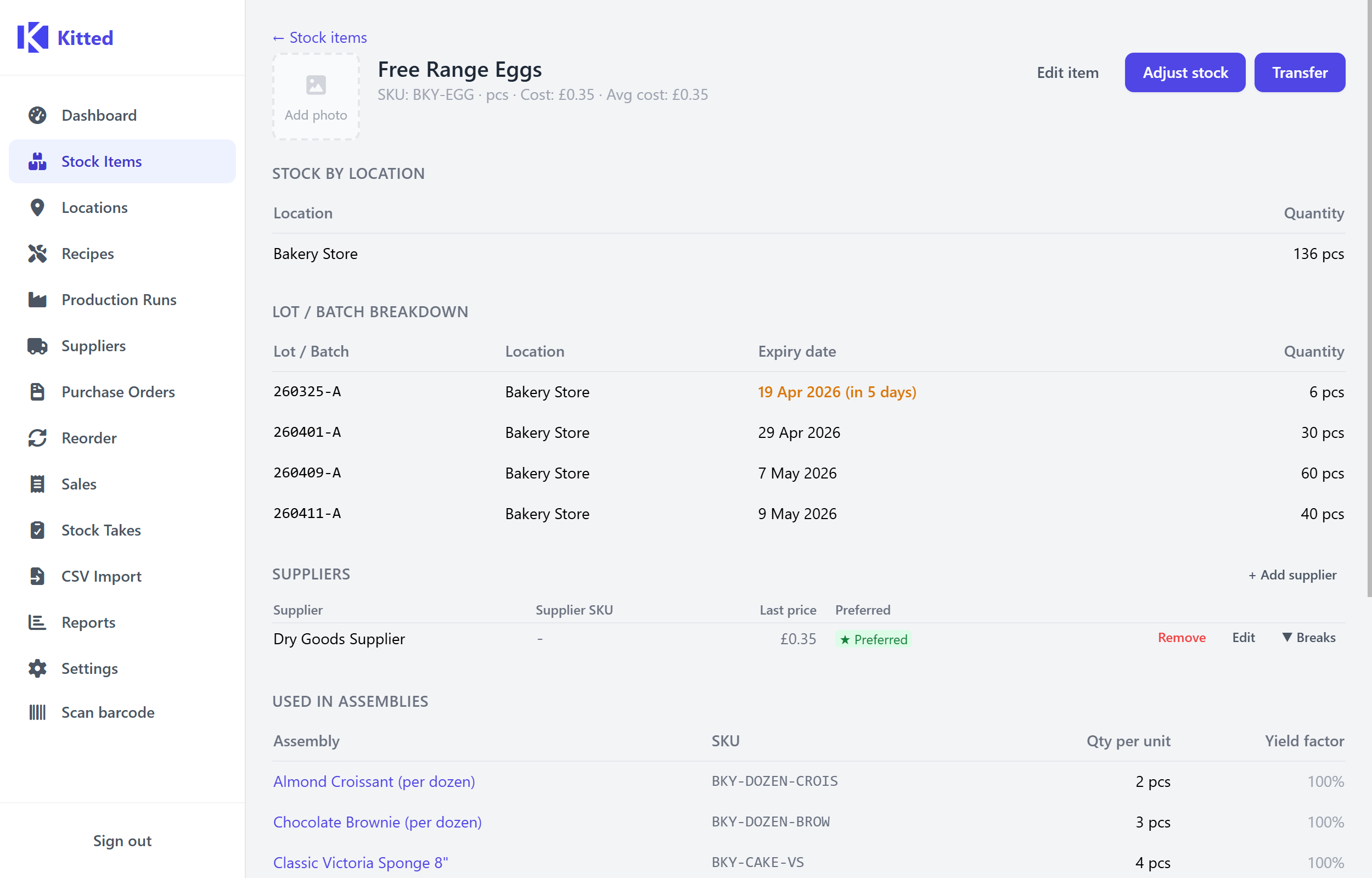
Open any lot-tracked item and scroll to the Lot levels section. This shows every lot currently on hand, broken down by location, with columns for:
- Lot / Batch number
- Location
- Expiry date (or - if none set)
- Quantity on hand
Lots where the expiry date has passed are highlighted in amber.
From Reports
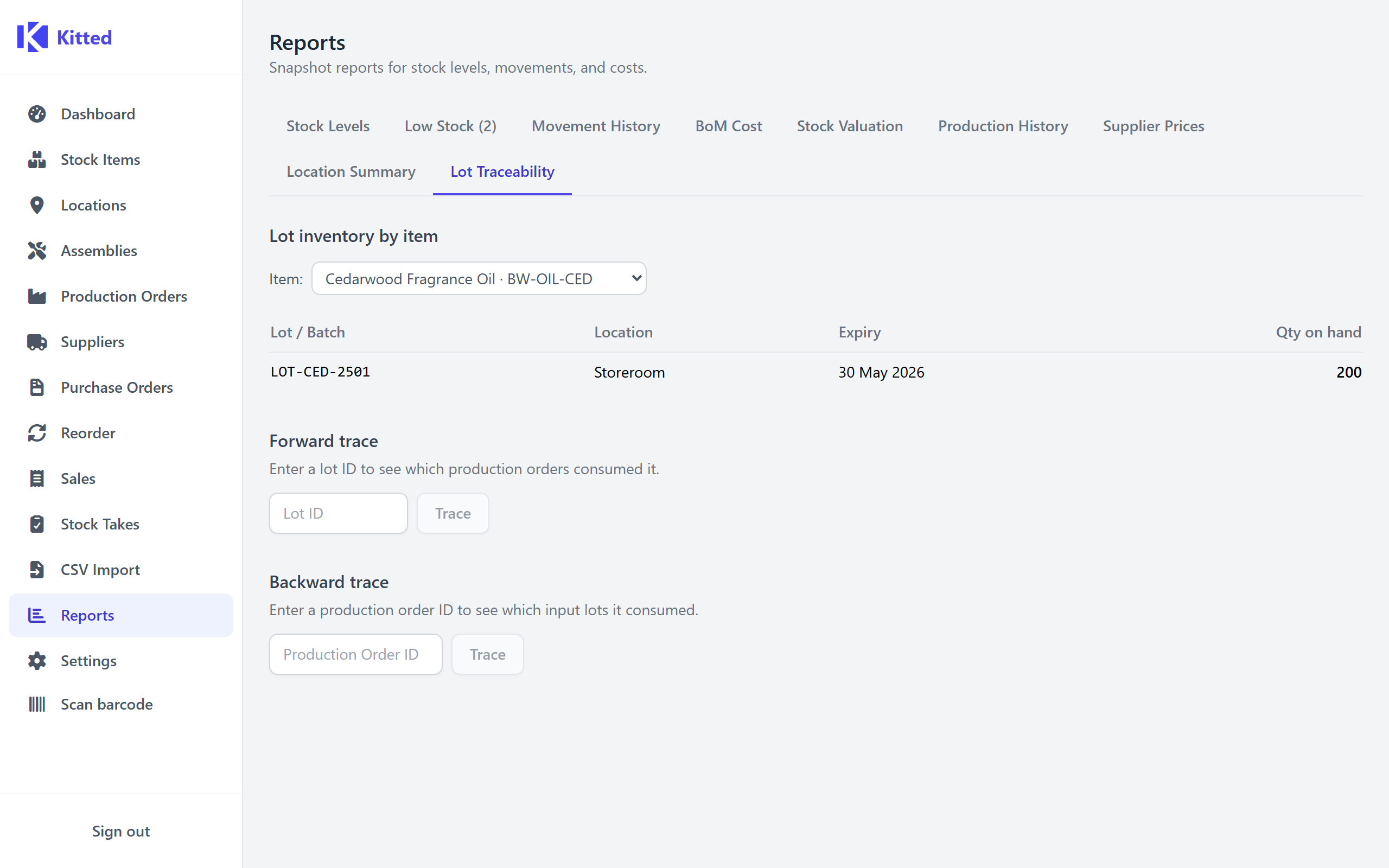
The Lot Traceability tab in Reports includes a Lot inventory by item section. Choose a lot-tracked item from the dropdown to see all lots on hand across all locations.
Production and Lot Consumption
When a production order is completed, Kitted automatically deducts components in FIFO order (earliest expiry first, then oldest by creation date). For each lot-tracked component consumed, Kitted records which lot was used and how much was taken.
If the output item (finished goods) also has lot tracking enabled, the complete/record modal will show a Lot number field for the finished batch. Entering a lot number here creates (or adds to) a lot for the output item, giving you a complete forward-trace link from input ingredient lots to the output batch.
Adjustments and Transfers by Lot
When adjusting or transferring a lot-tracked item, the location dropdown is replaced by a Lot / Location combined picker showing all lots currently on hand. Select the specific lot you are adjusting or moving.
- Adjustment - directly sets the lot level for the chosen lot at the chosen location, then recalculates the aggregate stock level.
- Transfer - moves a quantity from one lot-at-a-location to another location. The same lot number carries across.
Sales and Lot Selection
When recording a sale line for a lot-tracked item, the location dropdown is replaced by a combined Lot / Location picker listing all available lots. Choosing a lot records which batch was sold. If no explicit lot is chosen (or if you submit without selecting), the deduction is applied FIFO automatically.
Stock Takes and Lot-Tracked Items
When a new stock take is created, lot-tracked items generate one line per lot per location instead of one aggregate line per location. Each line shows:
- The item name and SKU
- The Lot column with the lot number and expiry date (where set)
- The location
- The expected quantity (the current lot level at that location)
When you enter counts and confirm:
- For each lot line, Kitted sets the lot level directly to your counted quantity.
- The aggregate stock level for that item/location is then recalculated as the sum of all lot levels at that location.
- No pro-rata inference is applied - each lot is reconciled to exactly the quantity you counted.
Lot Traceability Reports
The Lot Traceability tab in Reports provides three tools:
Lot inventory by item
Select a lot-tracked item from the dropdown to see all lots currently on hand, their locations, expiry dates, and quantities.
Forward trace
Enter a lot ID (shown in the lot inventory table) to see every production order that consumed stock from that lot - which finished goods it contributed to, how much was used, and when the production order was completed. This answers: “this ingredient lot has been recalled - which products are affected?”
Backward trace
Enter a production order ID to see every input lot that was consumed. This answers: “which ingredient batches went into production order #42?”
Expiry Alerts
Lots with an expiry date set are monitored against each item’s Expiry alert (days) threshold. When a lot’s expiry date falls within that window (or has passed), it appears in:
- The Expiry alerts section on the Dashboard
- The Expiry alerts section on the Reorder Workbench, alongside low-stock suggestions
The alert shows the item name, lot number, location, quantity, and the expiry date. Expired lots are highlighted in red; lots expiring soon are highlighted in amber.
Summary
| Workflow | What Kitted records |
|---|---|
| Goods receipt | Lot number, expiry date, quantity received to that lot at the receiving location |
| Production completion (input) | Which lots were consumed and how much was taken from each (FIFO) |
| Production completion (output) | Optional lot number for the finished batch |
| Sale | Lot from which the sold quantity was deducted |
| Adjustment | Lot directly set to counted / corrected quantity |
| Transfer | Lot moved from one location to another |
| Stock take | Each lot counted individually; lot level set directly to counted quantity |