Stock Management
Stock items are the foundation of Kitted. Everything else - production orders, assemblies, sales, purchase orders - references items from your stock list. This guide covers creating and managing items, recording stock movements, and using locations.
Stock Items
What is a stock item?
A stock item represents any material, component, ingredient, or finished good that you want to track. It could be a raw material you buy in, a component you manufacture, or a finished product you sell.
Creating a stock item
Go to Stock Items and click + New item. You will need to fill in:
| Field | Required | Notes |
|---|---|---|
| Name | Yes | A clear, descriptive name |
| SKU | No | Your internal code or a supplier part number |
| GTIN / Barcode | No | EAN-13, UPC-A, or any barcode format. Can be scanned via the barcode scanner button. |
| Categories | No | Comma-separated tags for filtering the stock list |
| Description | No | Optional longer description |
| Unit of measure | Yes | See below |
| Minimum stock level | No | Triggers a low-stock alert when breached |
| Cost price | No | Used in stock valuation reports |
| Sale price | No | Used when recording sales |
Units of measure
Choose the unit that best fits how you count or measure the item. Available units include:
- Count: Each (ea), Pair, Set, Box, Roll
- Mass: kg, g, mg, lb, oz, metric tonne
- Length: m, cm, mm, in, ft
- Area: m², ft²
- Volume: L, mL, m³
- Time: hr, min
You can also type a custom unit if nothing in the list fits. The unit is shown wherever quantities for that item appear.
Minimum stock level
Setting a minimum stock level on an item causes it to appear in low-stock alerts on the dashboard and in the Reorder Workbench when total stock across all locations falls below that number. Set it to 0 (the default) to disable low-stock tracking for that item.
Categories (Tags)
The Categories field stores a comma-separated list of tags that you define yourself - for example raw-material, packaging, finished-good, or fragrance. Tags appear as small chips beneath an item’s name in the stock list.
Once any items have tags, a Category dropdown filter appears in the stock list toolbar. Selecting a tag from the dropdown narrows the list to items that carry exactly that tag. Select the blank option to clear the filter.
Tags are free-form: there is no predefined list. Use whatever labels make sense for your business.
GTIN / Barcode
The GTIN / Barcode field stores the item’s barcode - typically an EAN-13, UPC-A, or similar format. It is optional and informational only (Kitted does not currently use it for automated lookups).
You can enter a barcode manually, or click the barcode icon next to the field to open the barcode scanner. The scanner uses your device’s camera to read a barcode and fill the field automatically. This requires camera access permission in your browser.
Item Images
Each stock item can have one product image. Images are visible on the item detail page and, optionally, as small thumbnails in the stock list.
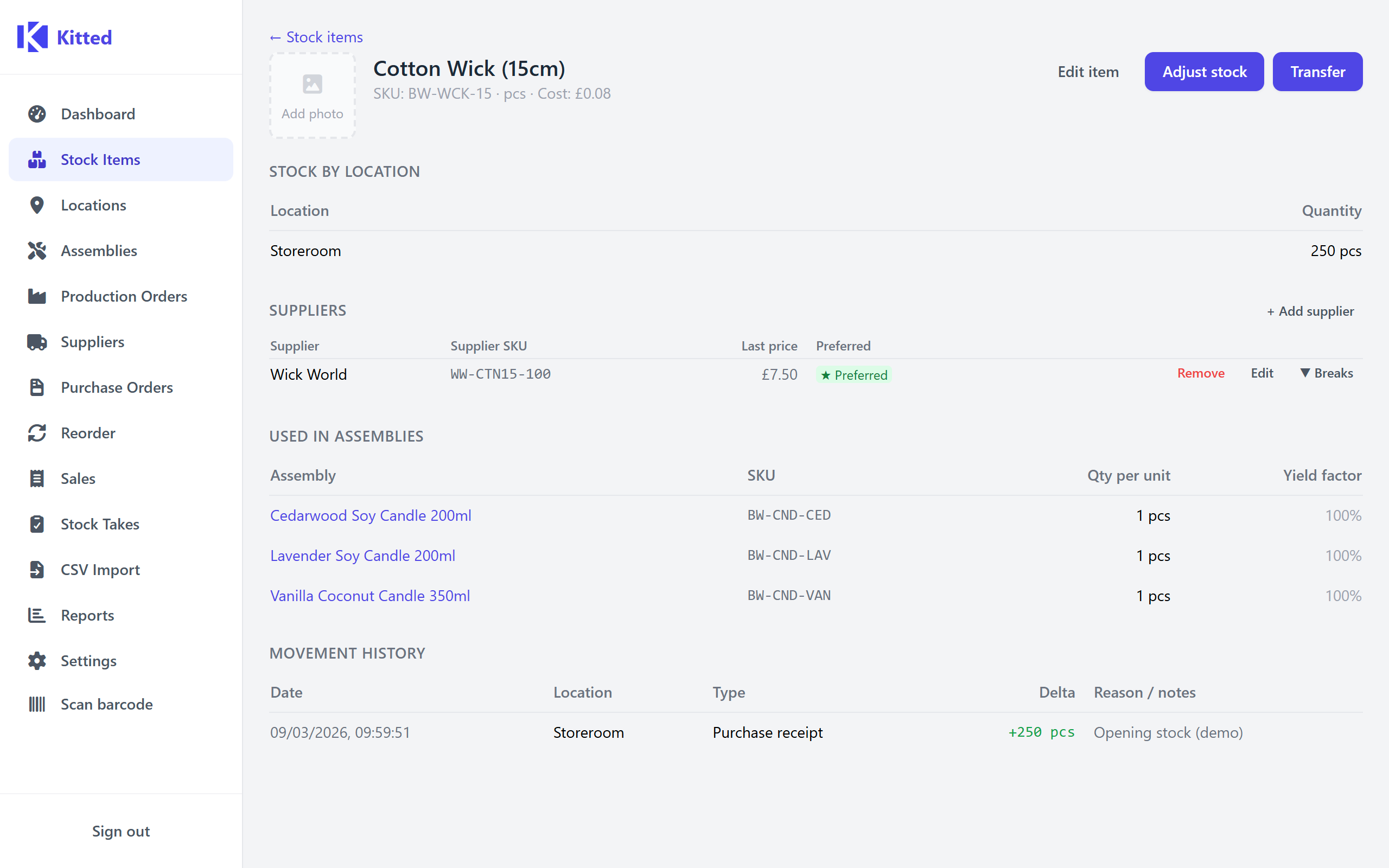
To add an image: open the item detail page (click the item name or View »). A placeholder image box is shown in the top-left of the detail panel. Click it (or click Add photo) to open a file picker.
To replace an image: click ↑ Replace below the existing image and choose a new file.
To remove an image: click ✕ below the image and confirm.
Accepted formats: JPEG, PNG, WebP. Maximum size: 5 MB. Images are stored in the data directory and included in backups.
Thumbnails in the list: tick Show thumbnails in the stock list toolbar to display a small thumbnail column. Items without an image show an empty placeholder.
Click an item in the list to open its detail page. From there you can edit all fields, manage supplier links, and see the full movement history. Click Edit in the top right to open the edit form.
Archiving an item
Items cannot be deleted once they have stock movements against them. Instead, use Archive to hide an item from the normal list. Archived items are excluded from low-stock alerts and reorder suggestions. Tick Show archived in the toolbar to see them.
Locations
Locations let you track stock in multiple physical places - different warehouses, rooms, shelves, or work areas.
Creating a location
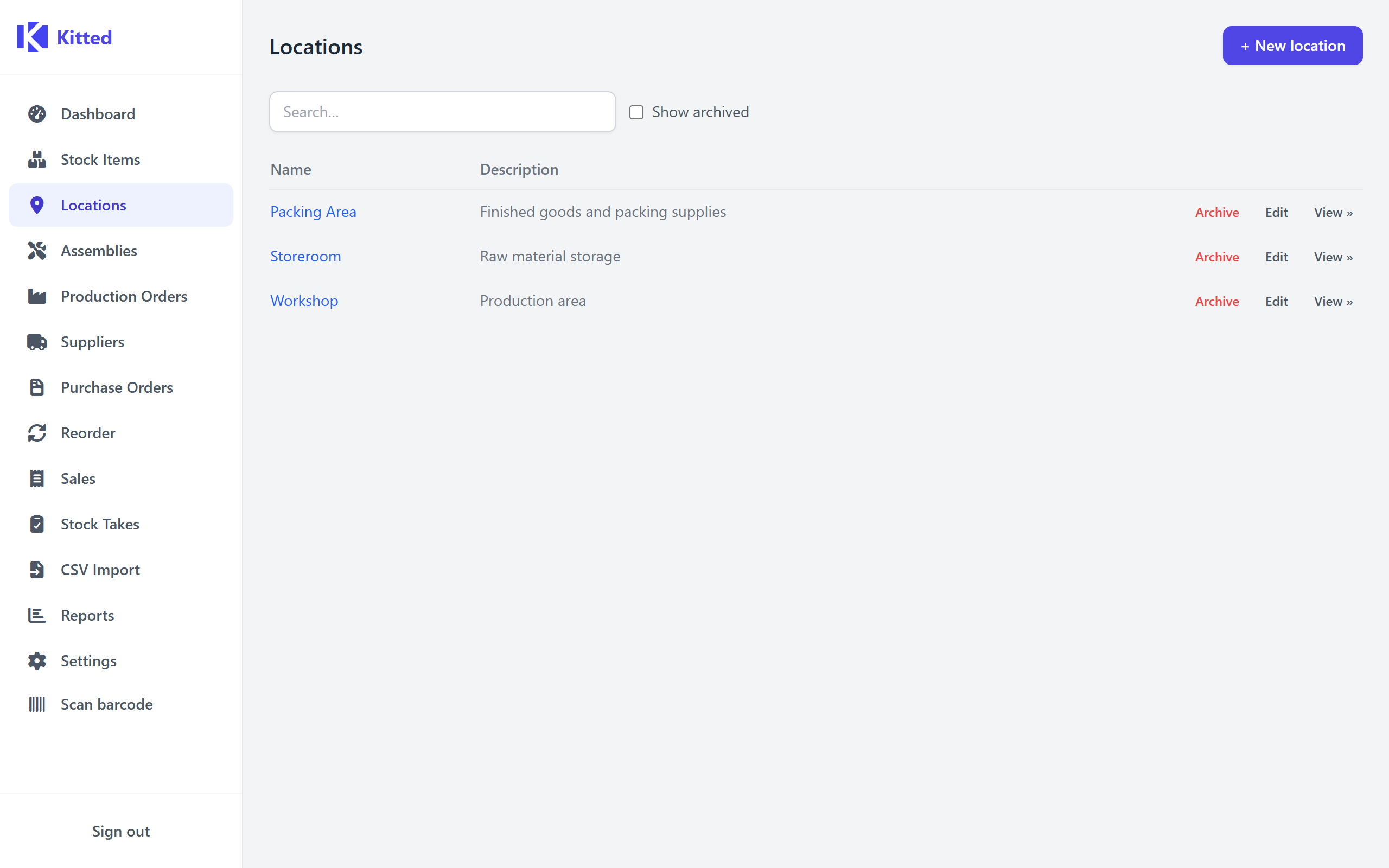
Go to Locations and click + New location. Give it a name (e.g. Main Warehouse, Cold Store, Finished Goods) and an optional description.
Your default location was created during setup. You can rename it here.
How locations work with stock levels
Each item can have a different quantity at each location. The Stock Items list shows the total across all locations. The item detail page shows the breakdown per location.
When you record a stock adjustment or transfer, you specify which location is affected.
Stock Adjustments
A stock adjustment is a direct change to the quantity of an item at a location - a write-up (positive) or write-down (negative). Use adjustments for:
- Recording initial stock when you first set up an item
- Correcting discrepancies found during a stock take
- Writing off damaged or lost stock
- Any quantity change that isn’t a sale, purchase receipt, or production run
Recording an adjustment
From the Stock Items list, click Adjust on any item (or open the item detail page and click Adjust stock):
- Select the location to adjust
- Enter the quantity change - positive to add stock, negative to remove it
- Add an optional reason for the record (e.g. Initial stock, Damaged in transit)
- Click Save
The adjustment is recorded as a movement in the item’s history.
Stock transfers
A transfer moves stock from one location to another without changing the total. Select the Transfer tab in the adjust modal, choose the from and to locations, and enter the quantity to move.
Stock Movements
Every change to a stock quantity is recorded as a movement. You can see the full history for any item on its detail page, including:
| Movement type | When it’s created |
|---|---|
| Adjustment | Manual write-up or write-down |
| Transfer in / Transfer out | Stock moved between locations |
| Purchase receipt | Stock booked in from a purchase order |
| Production in | Finished goods added by completing a production order |
| Production out | Components consumed by completing a production order |
The Stock Movements page (accessible from the main menu) shows movements across all items, with filters for date range, item, location, and type. This is useful for auditing or tracing where a discrepancy came from.
Low Stock Alerts
The dashboard shows a summary of items that have fallen below their minimum stock level. Clicking through takes you to the Reorder Workbench, where you can generate purchase orders for everything that needs restocking. See Reorder Workbench for details.
Attachments
You can attach documents and files to any stock item - spec sheets, safety data sheets, images, certificates, and so on. The Attachments card is shown on the stock item detail page.
You can also add tags to each attachment to categorise documents (for example spec-sheet, cert, invoice).
See Attachments for full details on uploading, tagging, downloading, and deleting files.