Production Orders
Production orders turn assembly definitions into physical stock. When you raise an order, Kitted snapshots the current Bill of Materials, guides the order through a configurable production pipeline, deducts components from stock on completion, and posts the finished goods to your chosen output location.
Raising a Production Order
Open Production from the sidebar and click New production order.
| Field | Notes |
|---|---|
| Assembly | Which assembly to produce. Only assemblies that are not archived are shown. |
| Quantity planned | How many finished units to make. |
| Output location | Where finished goods will be posted when production is recorded. |
| Notes | Optional free-text note attached to the order. |
When the order is saved, Kitted:
- Snapshots the full expanded Bill of Materials at that moment (see BoM snapshot below).
- Creates the first stage event: Planned.
Order Status
| Status | Meaning |
|---|---|
| Open | No units have been recorded yet. |
| Partial | At least one recording has been made but fewer than the planned quantity are complete. |
| Complete | Total quantity made equals the planned quantity. |
| Cancelled | Order was cancelled before completion. |
Production Stages
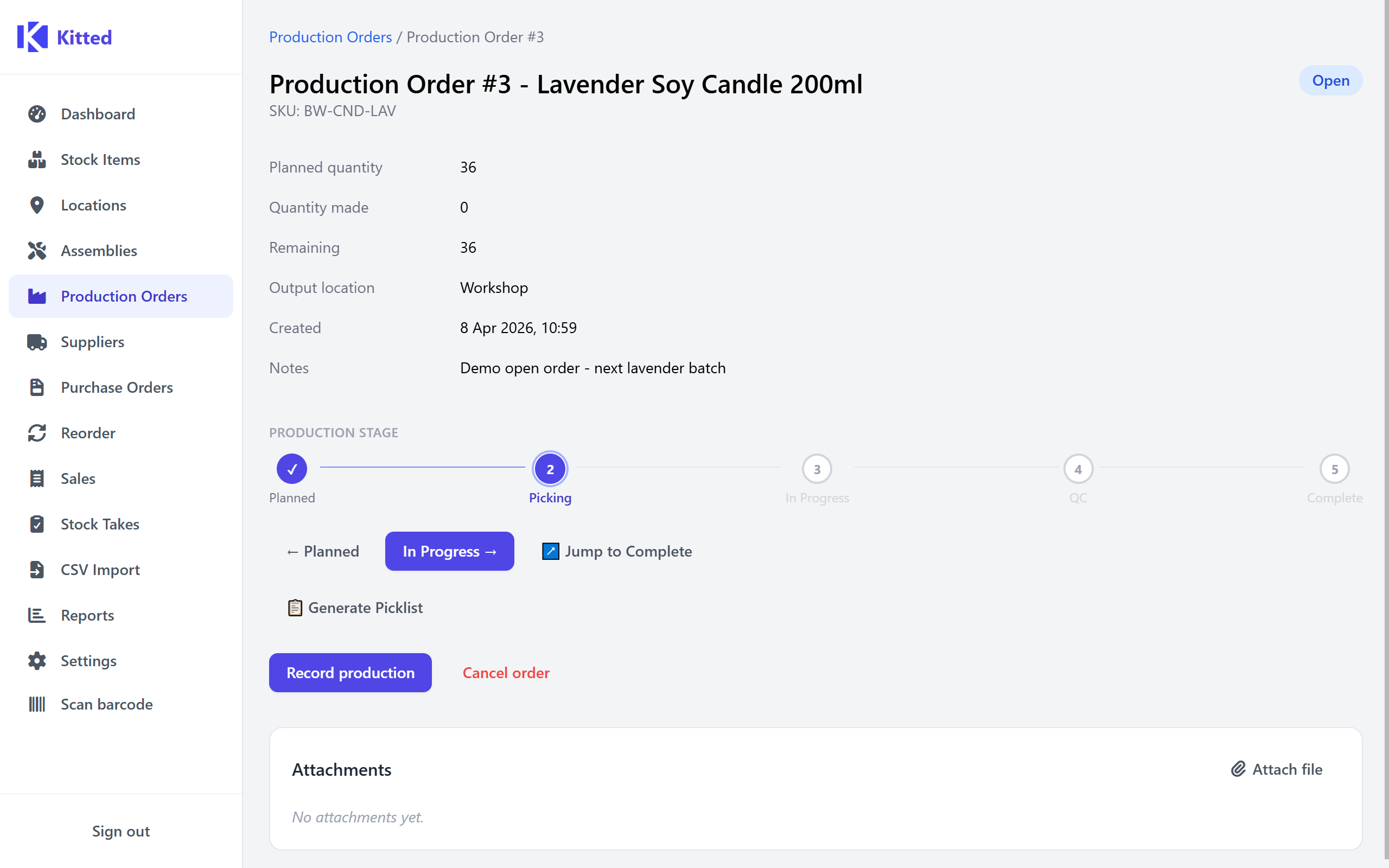
Every order moves through a five-step pipeline. The current stage is shown as a numbered stepper on the order detail page.
| # | Stage | Meaning |
|---|---|---|
| 1 | Planned | Order raised, awaiting action. |
| 2 | Picking | Components are being gathered. Advancing to this stage automatically opens the picklist. |
| 3 | In Progress | Active manufacturing underway. |
| 4 | QC | Quality check in progress. |
| 5 | Complete | All work finished. |
Use the ← Back and Forward → buttons to step through the stages one at a time, or ↗ Jump to Complete to skip straight to the final stage from any point. Each transition can optionally include a note that is recorded in the stage history.
You can move backwards as well as forwards - use the back arrow if a stage needs to be revisited.
Picklist
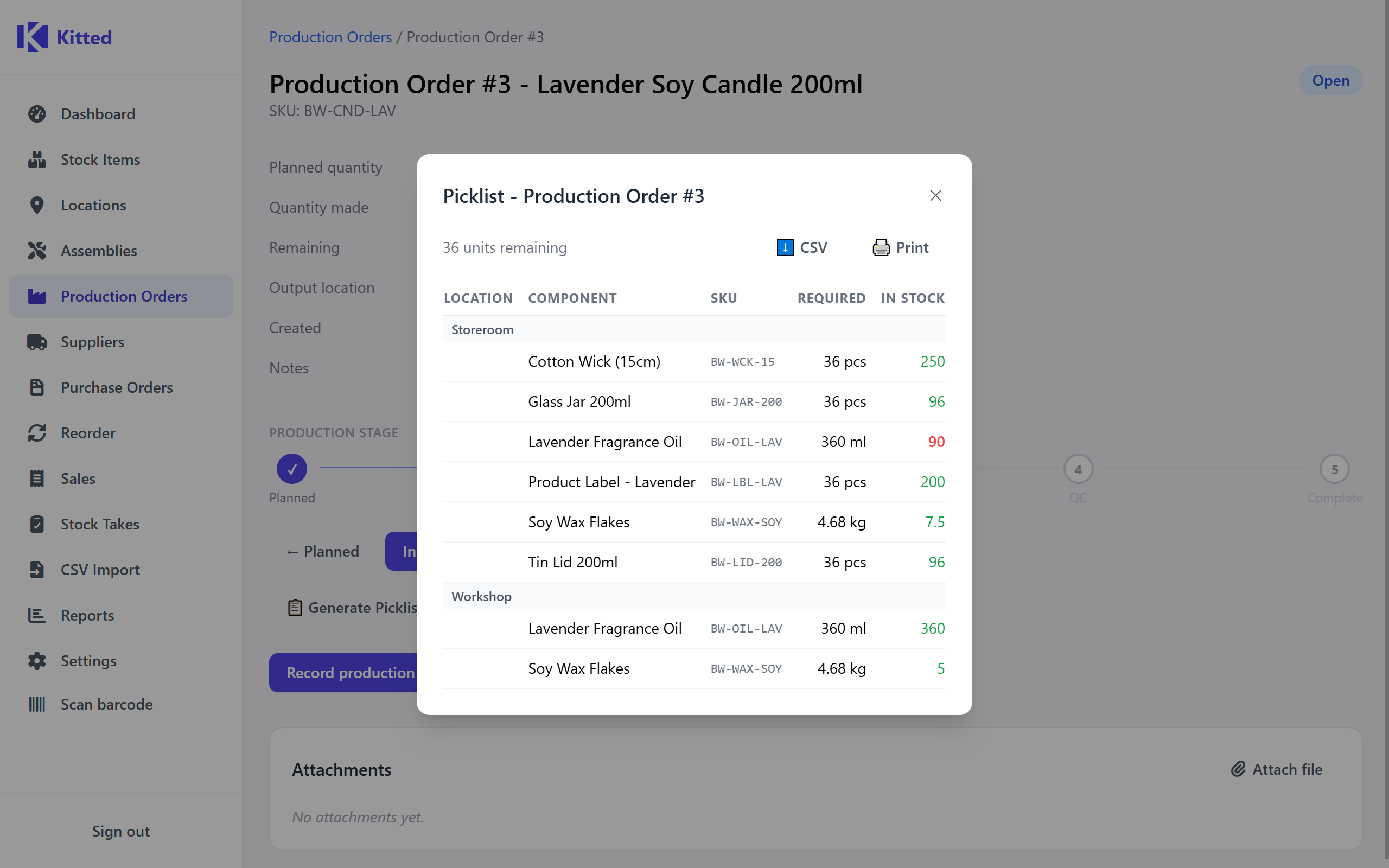
Click Generate Picklist (or advance to the Picking stage) to see a line-by-line breakdown of every component required, grouped by location, showing the required quantity and current stock at each location.
The picklist can be exported to CSV - click Download CSV in the picklist modal. The file includes columns for Location, Component, SKU, Unit of Measure, Required, and In Stock.
BoM Snapshot
When an order is raised, the full expanded BoM (including sub-assemblies) is captured as a snapshot. This means that subsequent changes to the assembly’s BoM do not silently alter what an in-flight order will consume.
On the order detail page you will see a Components (at order creation) table showing each component, the quantity per unit from the snapshot, and the total required for the planned quantity.
If the live BoM has since diverged, a warning banner appears - “BoM has changed since this order was raised” - and each affected row is highlighted:
- Amber - quantity has changed.
- Red - component has been removed from the BoM.
- Green - component has been added to the BoM since the order was raised (not in snapshot).
This gives you full visibility before deciding whether to proceed with the snapshotted consumption or cancel and re-raise the order.
Recording Production
When manufacturing is complete (or partially complete), click Record production:
| Field | Notes |
|---|---|
| Quantity made | How many units were produced this run. Cannot exceed the remaining quantity. |
| Notes | Optional note for this recording. |
On save, Kitted:
- Checks that every component has sufficient stock across all locations.
- If any component is short, it lists the shortfalls (component name, required, available) and blocks completion - no stock is moved.
- If stock is sufficient, it deducts components (largest-stock locations first to minimise splits) and posts
production_outmovements for each. - Adds the finished-goods quantity to the output location and posts a
production_inmovement. - Updates the order status to Partial or Complete depending on whether all planned units are now accounted for.
- Triggers low-stock checks on all consumed components.
Partial completions are supported - record production multiple times until the full planned quantity is reached.
Cancelling an Order
Click Cancel order on the order detail page. Cancellation is allowed on Open or Partial orders. A completed order cannot be cancelled.
Cancellation does not reverse any stock movements already made for earlier partial recordings.
Stage History
At the bottom of the order detail page, a chronological event log shows every stage transition with its timestamp and any notes that were added at the time.